
Mag Box Complete Set-Up Guide (MG4) – Full IPTV Configuration
This guide shows you how to set up your MAG Box MG4 from scratch: connect power and HDMI, configure display settings, set language and time, connect to Wi-Fi, then activate IPTV using a MAG portal from your provider.
Table of Contents
Mag Box Complete Set-Up Guide (Quick Hardware Setup)
Follow these first steps to connect your MAG Box MG4 correctly before configuration.
Step 1 – Connect your MAG Box to power
Plug the MAG Box MG4 into the power adapter, then connect it to an electrical outlet.
Step 2 – Connect MAG Box to TV (HDMI/AV)
Use the HDMI cable provided to connect the MAG Box to your TV. If HDMI is not available, use the AV port with an AC/AV cable.
Step 3 – Insert batteries into the remote
Open the remote cover and insert the batteries to power it on.
Step 4 – Connect to internet (Ethernet/Wi-Fi)
Connect using an internet cable or set up Wi-Fi later in settings. Note: The IPTV portal steps are mainly for IPTV sellers/providers.
Now Complete Display Set-Up
After hardware connection, configure the MAG Box display and system settings.
Step 01 – Wait for the first boot
Turn on the box and wait until the first display appears on your TV screen.
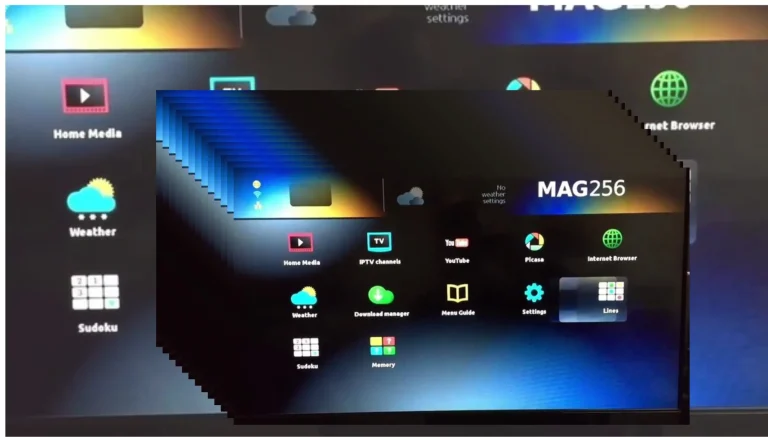
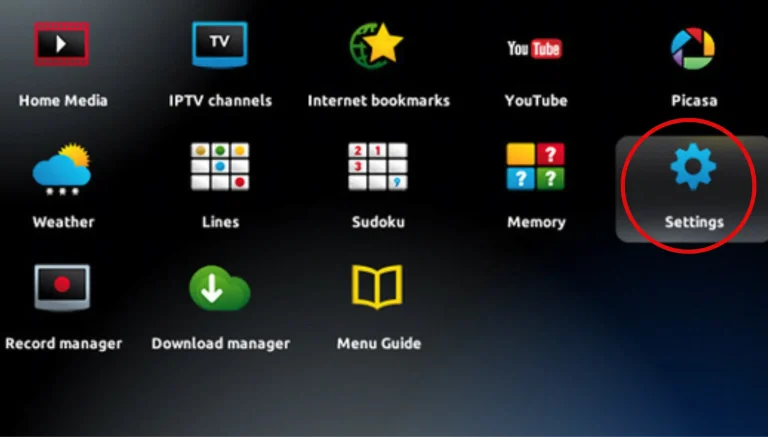
Step 02 – Open Settings → Device Preferences
On the main screen, click Settings, then select Device Preferences.
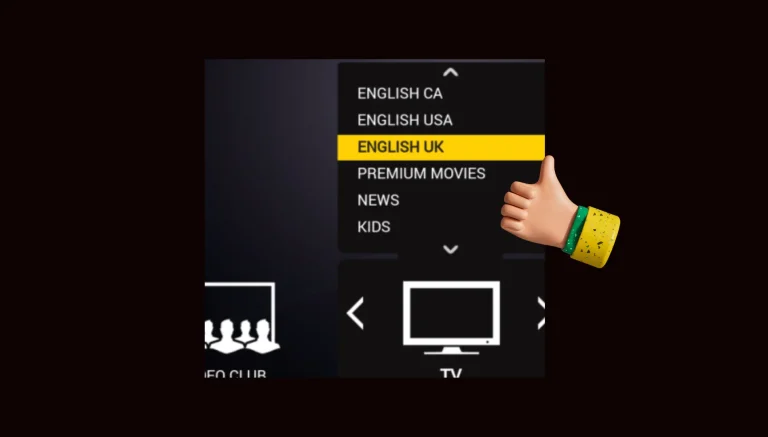
Step 03 – Choose language (English)
Inside Device Preferences, open Language and select English.
Step 04 – Set Date & Time
Go to Settings → Device Preferences → Date & Time. Choose your country format and select 12h or 24h as you like.
Step 05 – Network selection
Settings → Device Preferences → Network. Select your Wi-Fi and enter the password.
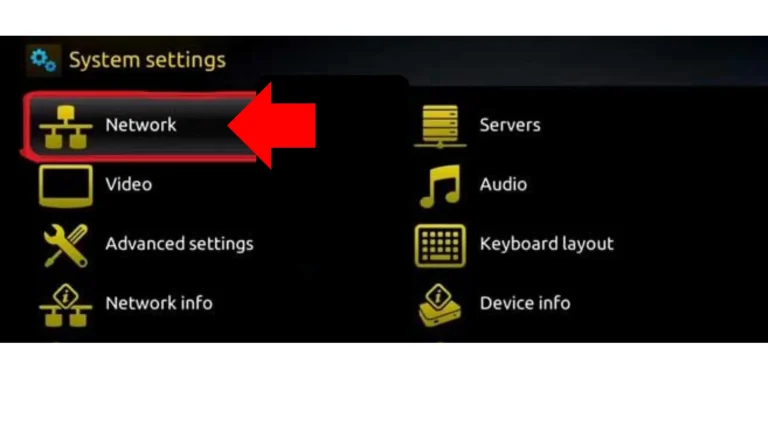
Step 06 – Confirm internet connection
After entering the password, your MAG Box connects to internet. Now the device is ready for IPTV setup.
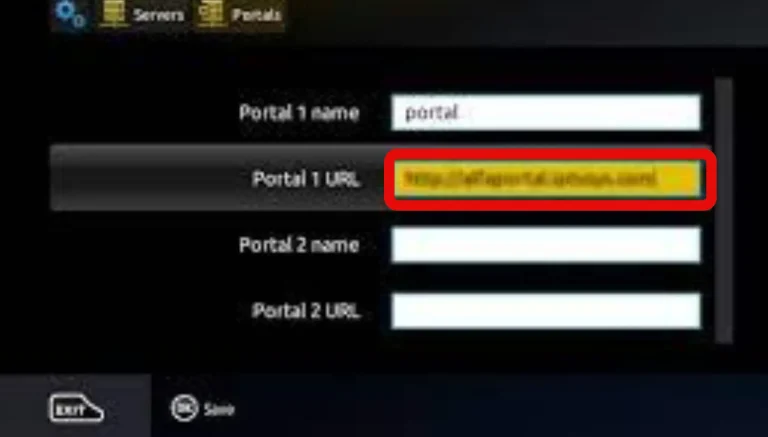
Complete IPTV Setup on Mag Box
To watch IPTV on a MAG Box you need a MAC activation and a portal from your provider.
Step 01 – Contact your IPTV provider
To get Live TV, Movies and Series, contact your IPTV provider first. They will provide your line details and portal.
Step 02 – Find your MAG Box MAC address
The MAC address appears on your MAG dashboard, and is also written on the back of the MAG Box. You will need it to activate IPTV.
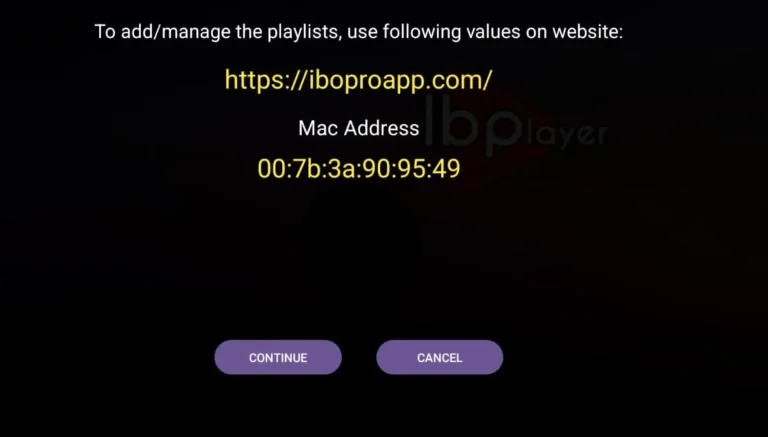
Step 03 – Provider adds MAC in panel
If you’re a provider: take the MAC from your client, add it to your server/panel, choose a package (trial or full) and activate.
Step 04 – Get the MAG portal URL
Different panels offer different MAG portals. Example: on OneG panel, open dashboard → MAC Portals, choose one and send it to client.
Step 05 – Enter portal on MAG Box
After activation, restart MAG Box. It will ask for Portal URL (Nek/MAG Portal). Enter the portal you received.
Step 06 – Enjoy IPTV content
Once the portal is installed, restart again. You can now watch Live TV, Movies and Series normally.
We provide MAG portal lines with stable servers. Get a 24H free trial and test Live TV, VOD & Series.