
Complete Setup Guide of IBO Player Pro (Smart TV IPTV)
IBO Player Pro is one of the best Smart TV players to watch IPTV content on Samsung, LG, Android TV, Fire TV and more. In this guide, you’ll learn how to activate the app, add playlists (M3U or Xtream Codes), and start watching in just a few minutes.
Table of Contents
What is IBO Player Pro?
IBO Player Pro is a powerful multimedia player for Smart TVs. It’s a popular alternative to Duplex Play, especially since Duplex Play is no longer available on some LG TVs and other platforms.
Important Note: IBO Player Pro does not provide channels or playlists. It is only a player. To watch content, you must add your own playlist (M3U or Xtream Codes) from an IPTV provider.
Latest Updates (App Information)
Here’s the latest official information about the IBO Player Pro application:
| Application Name | IBO Player Pro |
| Application Version | 3.8 |
| Size | 18 MB |
| Developer | vuproapp |
| Installs | 400K+ |
| Latest Update | December 12, 2023 |
Download IBO Player Pro: Download Free
How to Set Up IPTV Subscription on IBO Player Pro
Follow these steps to get an IPTV subscription and add playlists to IBO Player Pro:
Step 1 – Launch the app and get your MAC address
After installing IBO Player Pro, open it on your TV. You will see a MAC Address and a Device Key. Keep them ready.
Step 2 – Open the IBO Player Pro website
On your phone or PC visit: iboplayerpro.com
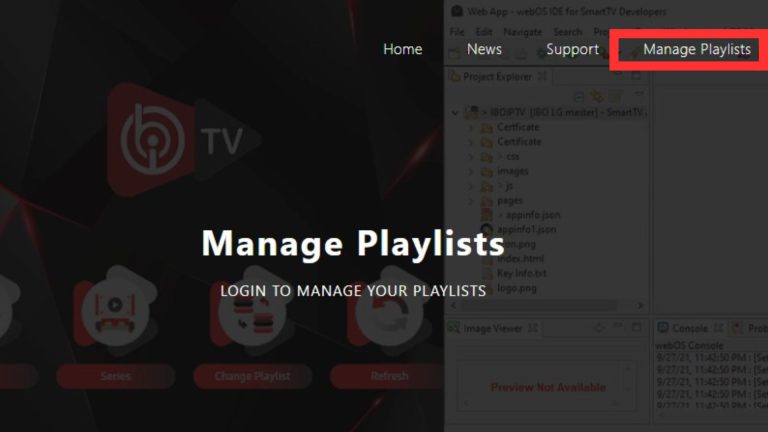
Step 3 – Click on “Manage Playlist”
On the website dashboard, click Manage Playlist to connect your TV app.
Step 4 – Enter your MAC address and Device Key
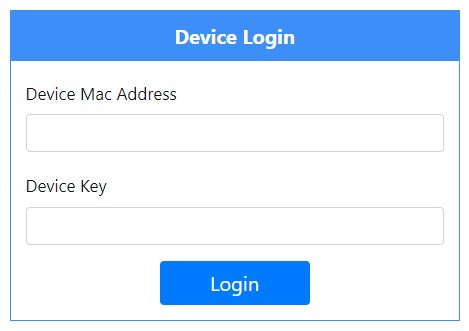
Type your MAC Address and Device Key exactly as shown on the TV screen to establish the connection.
Step 5 – Choose playlist type (M3U or Xtream Codes)
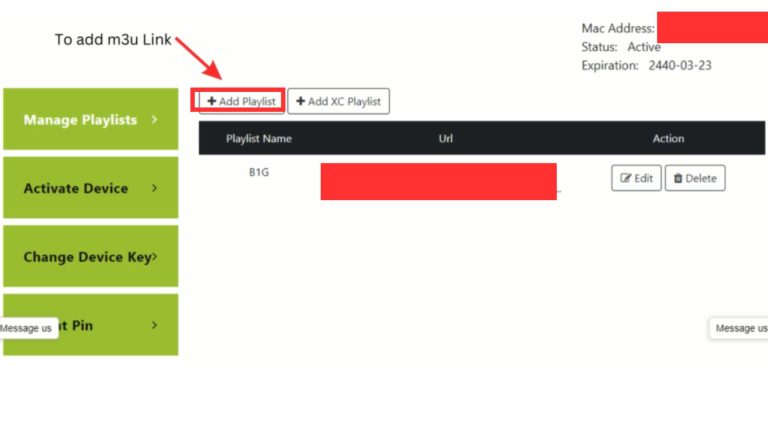
After connecting, choose one method:
- + Add Playlist → for M3U links.
- + Add XC Playlist → for Xtream Codes.
Step 6 – Add your playlist details
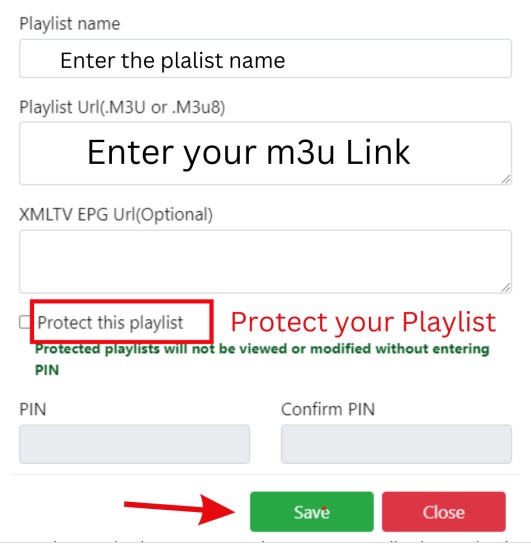
Enter a playlist name + your M3U URL or Xtream Codes info, then save.
Step 7 – Restart the app on your TV
Restart IBO Player Pro on your Smart TV so the playlist loads and channels appear.
IBO Player Pro Features
Here are the main features offered by IBO Player Pro:
- High-Quality Audio Playback with support for multiple formats.
- Video Playback for Live TV, VOD and Series.
- Customizable Equalizer depending on device support.
- Playlist Management to organize your channels.
- Streaming Support through M3U and Xtream Codes.
- Cross-Platform Use on Samsung, LG, Android TV, Fire TV.
- Offline Playback if your device/content supports it.
Get a 24H free trial and test Live TV, VOD & Series on your Smart TV.